3. Browsing the data
3.3. Survey Response View
3.3.2. Screen Description
Explain how to use the filters and other options on the menu screen.
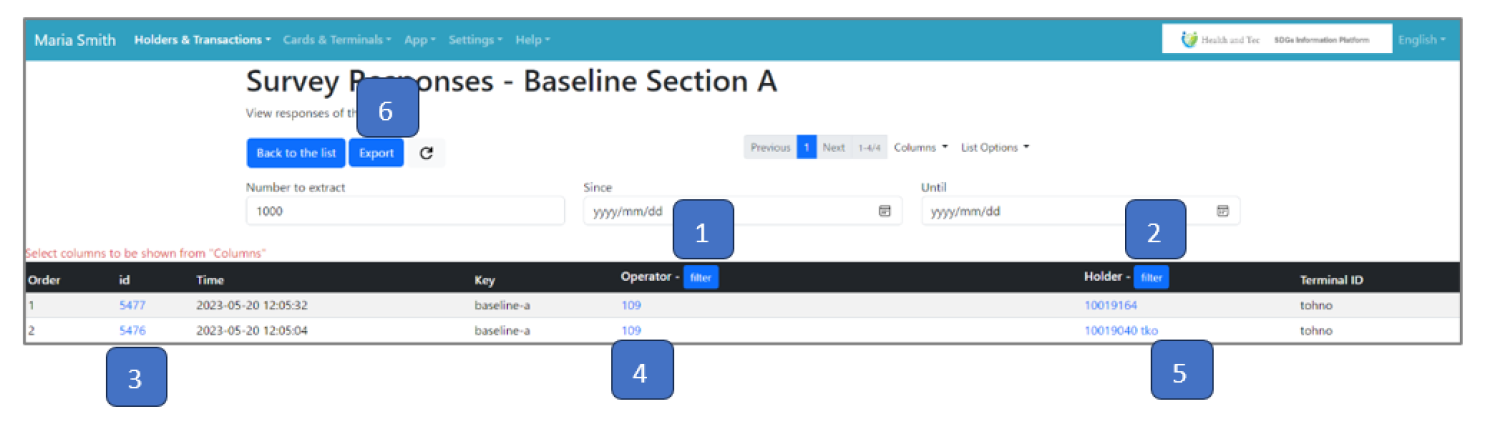
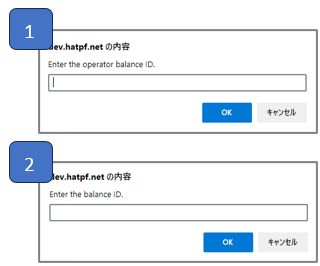 | An input form for the sort string will appear at the top of the screen. Click “Cancel” to close the input form. |
 | A list of Transactions with the clicked item will be displayed. |
 | A list of Profile, Transaction as Operator with the clicked item will be displayed. |
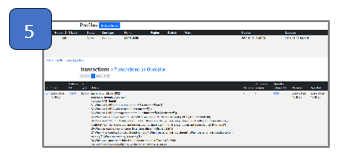 | A list of Profile, Transaction as Operator with the clicked item will be displayed. |
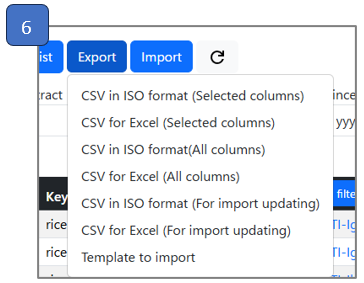 | The Export in the Server Response view includes more items. |
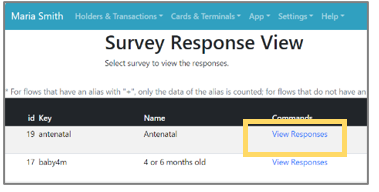 | Step 1: Click the “View Responses” on the list. |
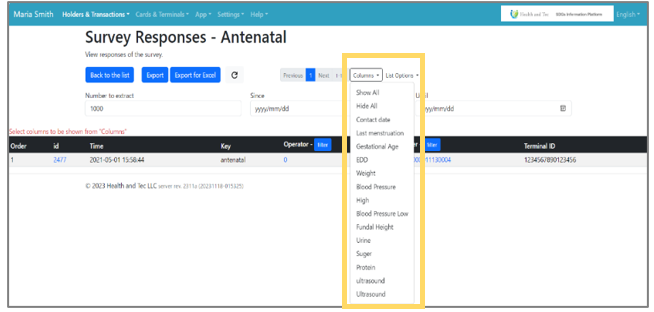 | Step 2: The selected key of responses will be displayed in the list. Click “Columns” to show or hide items. |
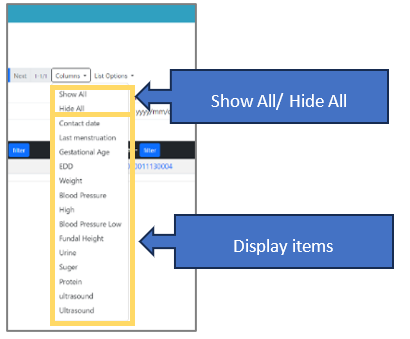 | Step 3: Choose the items you want to display from the pull-down list, one by one. Note: You can also select “Show All” to display all items or “Hide All” to hide all items at once. |