6. End user update registration information/Data reference
6.2. Transaction history reference
This section explains how to view transaction history.
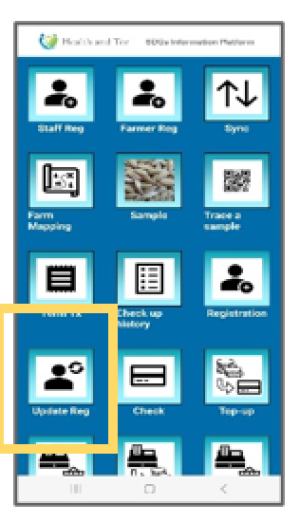 | Step 1:To view the card's transaction history, tap “Update Reg.” |
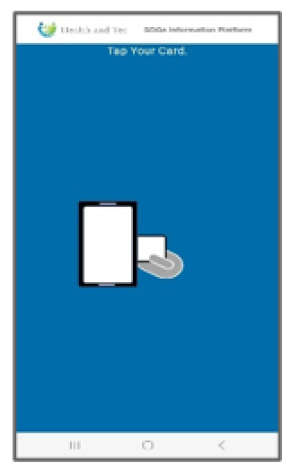 | Step 2:The QR code tapping request screen will appear. Once tapping is successful, the latest data will be downloaded from the server and displayed. |
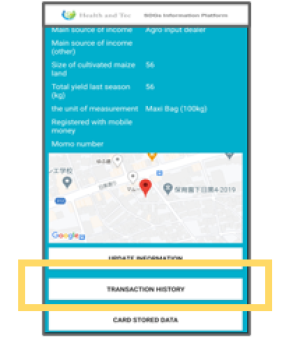 | Step 3:Tap the “TRANSACTION HISTORY” button within the profile. |
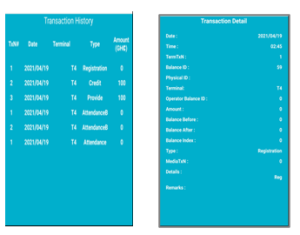 | Step 4:The transaction history will be downloaded from the server, and you can view details for each transaction row. |
* Transaction history is limited to the most recent one year or the latest 100 transactions.
* To view older history, tap the “Earlier” button.
* Images are not downloaded by default. To view images, tap the “Show Image” button.