HAT Reach manual
HAT Reach manual
  • Tools
    • User Tools
    • Log In
    • Site Tools
    • Recent Changes
    • Media Manager
    • Sitemap
    • Page Tools
    • Show pagesource
    • Old revisions
    • Backlinks
    • Back to top
  • Log In

  1. Trace
  2. medias-manage
  3. notificationlogs-detail
  4. holders-detail
  5. surveysresponseview-import
  6. change-lanugage

change-lanugage

Translations of this page:
  • English (en)
  • Français (fr)
  • 日本語 (ja)
Index

Index

Glossary
Targets
Server
1. Basic Operation
  • 1.1 Login
    • 1.1.1 Login (Resent the OTP)
  • 1.2 Change Language
  • 1.3 Change the displayed environment
  • 1.4. Notes on using multiple tabs
  • 1.5. Platform Reports
  • 1.6. Header image
  • 1.7. Change Password
  • 1.8. Logout
  • 1.9. Cautions when referring to data
  • 1.10. Export the data
2. Functional Overview
  • 2.1. Function of Holders & Transactions
  • 2.2. Function of Cards & Terminals
  • 2.3. Function of App
  • 2.4. Function of Settings
3. Browsing the data
  • 3.1. Holders
    • 3.1.1. Item Description (Holders)
    • 3.1.2. Screen Description
    • 3.1.3. Edit Holder’s information
    • 3.1.4. Confirm details
    • 3.1.5. Show/Hide settings of photos
  • 3.2. Transactions
    • 3.2.1. Item Description (Transactions)
    • 3.2.2. Screen description
    • 3.2.3. Edit transaction history
    • 3.2.4. Data extraction
  • 3.3. Survey Response View
    • 3.3.1. Item Description
    • 3.3.2. Screen Description
    • 3.3.3. Confirm the results of the survey
    • 3.3.4. Import the survey
  • 3.4. Dashboard
    • 3.4.1. Item Description
    • 3.4.2. New Registration
    • 3.4.3. Cross aggregation function
  • 3.5. Profile
    • 3.5.1. Item Description
    • 3.5.2. Screen Descriptions
    • 3.5.3. Edit Profiles
  • 3.6. Profile Binary Data
    • 3.6.1. Item Description
    • 3.6.2. Screen description
    • 3.6.3. Edit Profile Binaries
  • 3.7. Accounts
    • 3.7.1. Item Description
    • 3.7.2. Editing Accounts
  • 3.8. Attached transactions binary Data
    • 3.8.1. Item Description
    • 3.8.2. Screen description
  • 3.9. Tracking Activities
    • 3.9.1. Item Description
    • 3.9.2. Screen description
4. Log reference
  • 4.1. Operation Log
    • 4.1.1. Item Description
    • 4.1.2. Screen description
  • 4.2. Notification Log
    • 4.2.1. Item Description
    • 4.2.2. Screen Description
    • 4.2.3. Confirm the details
  • 4.3. Access Log
    • 4.3.1. Item Description
    • 4.3.2. Screen Description
  • 4.4. Terminal Log
    • 4.4.1. Item Description
5. System settings
  • 5.1. Terminal and Card Management
    • 5.1.1. Card type and Card type group
    • 5.1.2. Terminals and terminal groups
  • 5.2. Medias management
    • 5.2.1. Media Management
  • 5.3. Bulk registration
    • 5.3.1. Item Description
    • 5.3.2. Screen Description
  • 5.4. Application update
    • 5.4.1. Update the application
    • 5.4.2. Confirm the version of application
  • 5.5. Address and hierarchical structure
    • 5.5.1. Address setting
  • 5.6. ID type in profile
    • 5.6.1. Setting ID Type in profile
    • 5.6.2. Item Description
  • 5.7. Transaction settings
    • 5.7.1. Transaction Type
    • 5.7.2. Item Description
    • 5.7.3. New registration (1/2)
    • 5.7.4. New registration (2/2)
  • 5.8. Balance Definition
    • 5.8.1. Item Description
    • 5.8.2. New registration
  • 5.9. App Header and Menu Settings
    • 5.9.1. Confirm, edit, delete
    • 5.9.2. Menu settings
  • 5.10. Real Time Communication (RTC)
    • 5.10.1. Item Description
    • 5.10.2. New Registration
  • 5.11. Surveys
    • 5.11.1. Surveys
    • 5.11.2. Item Description
    • 5.11.3. New registration
  • 5.12. Slip
    • 5.12.1. Slip
    • 5.12.2. Item Description
    • 5.12.3. New registration
    • 5.12.4. Block and Release cards
  • 5.13. Item and price management
    • 5.13.1. Item Unit Type
    • 5.13.2. Item Description
    • 5.13.3. New registration
  • 5.14. Item Group
    • 5.14.1. Item Description
    • 5.14.2. New registration
  • 5.15. Price
    • 5.15.1. Item Description
    • 5.15.2. New registration
6. Parameter settings
  • 6.1. Parameter List
  • 6.2. Item Description
  • 6.3. Parameter Details
    • 6.3.1 Balance
    • 6.3.2. Currency, Language, Default time zone
    • 6.3.3. Warning setting for unsent data
    • 6.3.4. NFC Settings
    • 6.3.4. Password format
    • 6.3.5. Telephone number form
    • 6.3.6. Profile
    • 6.3.7. QRC setting
    • 6.3.8. SMS Messages
    • 6.3.9. Operators
    • 6.3.10. Balance ID for survey testing
    • 6.3.11. Terminal application update settings
    • 6.3.12. Terminal display color
    • 6.3.13. Twilio (SMS Gateway) Settings
    • 6.3.14. Media settings
    • 6.3.15. Other parameters
7. Settings for NFC
  • 7.1. Card Profile
    • 7.1.1. Item Description
8. Settings of Server Operator
  • 8.1. Server Operator
  • 8.2. Item Description
  • 8.3. New registration and edit the information(1/2)
9. Features for specific clients/country
  • 9.1. Biometric Match Result
    • 9.1.1 Item Description
    • 9.1.2 Screen Description
    • 9.1.3 Confirm the duplication of Biomentric
Mobile App
1. Glossary
2. Targets
3. Before starting up
  • 3.1. Equipment preparation
  • 3.2. Operator card authentication
  • 3.3. Terminal specifications
  • 3.4 Apk file
  • 3.5 Application settings (Terminal ID)
  • 3.6. App settings (Entering Terminal ID)
  • 3.7. Biometric usage settings
  • 3.8 Use of Biometrics in operator card authentication
  • 3.9. Change of terminal ID
  • 3.10. Terminal Log
  • 3.11. Terminal Information Reference
  • 3.12. OSS License Information
4. Synchronization
  • 4.1 Synchronization (manual)
  • 4.2. Unsent Data Warning
  • 4.3 Terminal history reference
  • 4.4. Uninstallation
5. End User Registration
  • 5.1. End User/Staff registration
    • 5.1.1. ID Card registration
    • 5.1.2. Photo registration
    • 5.1.3. Application
6. End user update registration information/Data reference
  • 6.1. updating end user registration information
  • 6.2. Transaction history reference
  • 6.3. Card/QR code saved data reference
  • 6.4. Card check
7. Attendance Record
  • 7.1. Attendance
8. Farm mapping
  • 8.1. Registration of farm mapping
  • 8.2. Farm mapping registration results
9. Survey
  • 9.1. Registration of survey
  • 9.2. Function of survey (Selector)
  • 9.3. Select camera image
  • 9.4. Pulldown selector/ Date picker/ Location
  • 9.5. Autofill
10. Traceability
  • 10.1. Bag registration
  • 10.2. Bag Receipt at Warehouse
  • 10.3. Bag Tracking
  • 10.4. Website
  • 10.5. Term Tx
  • 10.6. Tx View
  • 10.7. Synchronization
  • 10.8. New card type
11. Real Time Communication
  • 11.1. Remote Video Feature
  • 11.2. Remote Video Feature Specifications
  • 11.3. Call Button
  • 11.4. Screen Flow – Nurse Side (Origin)
  • 11.5. Screen Flow – Doctor Side (Destination)
12. Application updates
  • 12.1. Application update methods
  • 12.2. Check the application version
  • 12.3. Application update
13. Troubleshooting
Contact
  • Show pagesource
  • Old revisions
  • Backlinks
  • Back to top
  • Share via
    • Share via...
    • Twitter
    • LinkedIn
    • Facebook
    • Pinterest
    • Telegram
    • WhatsApp
    • Yammer
    • Reddit
    • Teams
  • Recent Changes
  • Send via e-Mail
  • Print
  • Permalink

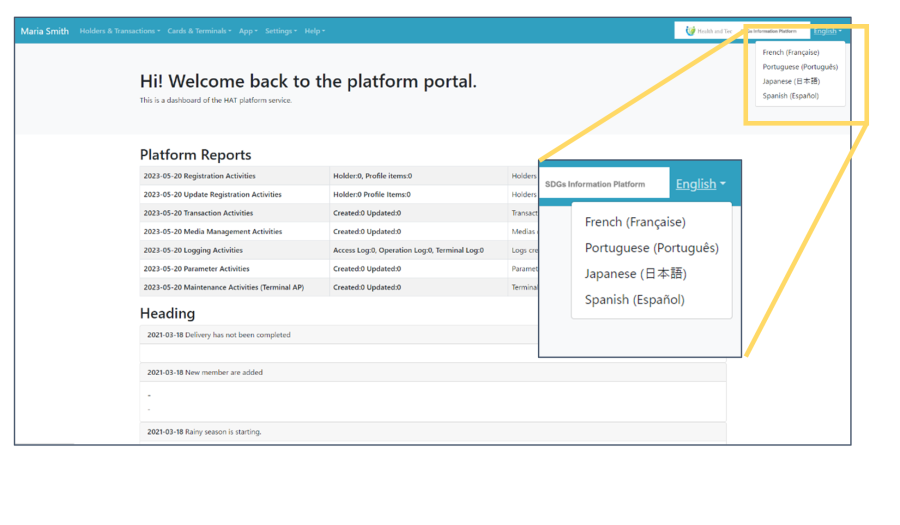
1.2. Change Language

The portal's display language can be changed to English, Japanese, French, Portuguese, or Spanish by clicking the language switch button in the upper right corner of the portal.

  • change-lanugage.txt
  • Last modified: 2025/10/20 17:23
  • by editor
HAT Reach manual

HAT Reach manual


  • Bootstrap template for DokuWiki
  • Powered by PHP
  • Valid HTML5
  • Valid CSS
  • Driven by DokuWiki