8. Farm mapping
This section explains how to record farmland. By understanding the size and location of the farmland, agents can better assess financing indications and risks.
8.1. Registration of farm mapping
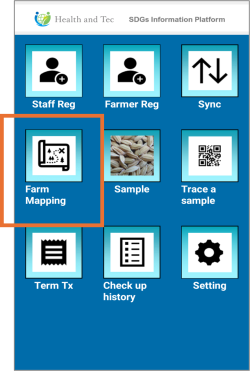 | Step 1:Tap “Farm Mapping” to register farmland. |
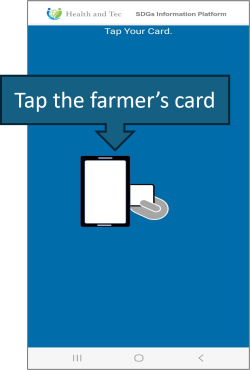 | Step 2:To identify the farmer, tap the farmer’s card.(Note: Agent cards cannot be used.) |
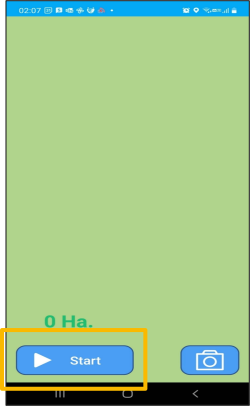 | Step 3:If the tap is successful, the mapping screen will appear. Press “Start.” |
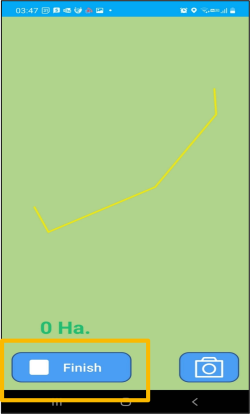 | Step 4:After tapping the “Start” button, recording begins, and the [Start] button label changes to “Finish.” Recording occurs approximately every second, and the movement path is displayed as a yellow line on the screen. |
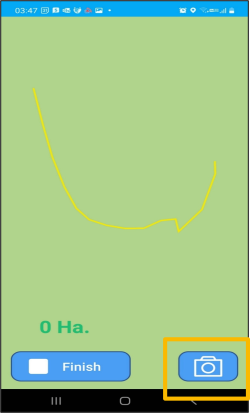 | Step 5:Tap the camera icon to launch the camera app and take photos. |
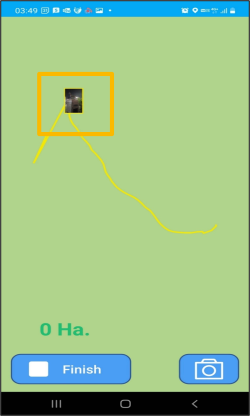 | Step 6:Locations where photos were taken will also be displayed with an image icon. Tap the icon to enlarge and view the image. |
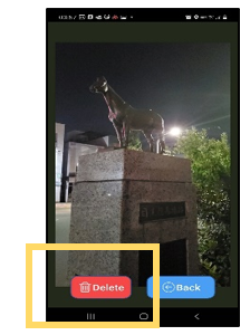 | Step 7:On the enlarged photo screen, you can tap the “Delete” button to remove the photo. |
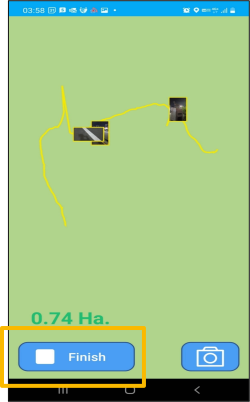 | Step 8:Press the “Finish” button to end the recording. A connected area starting from the starting point will be displayed, and the “Submit” button will also appear. |
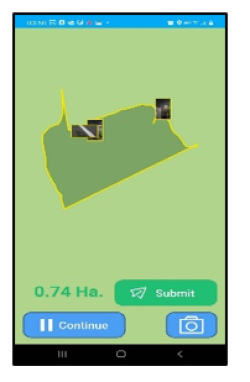 | Step 9:The area will be displayed in hectares. (Tapping the “Continue” button allows you to resume recording.) |
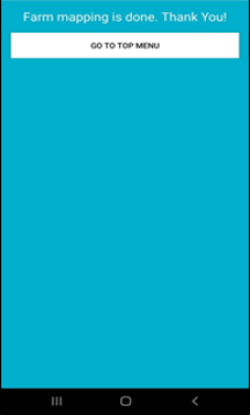 | Step 10:Tapping the “Submit” button will send the mapping data to the server. |